---
title: Implementing Spell Correction
slug: user-documentation/implementing-spell-correction
docTags:
createdAt: 2024-04-15T10:46:40.597Z
---
## Step 1: Through NoChannel Commerce Portal PIM or Product Catalog
:::::Tabs
::::Tab{title="Step 1: Through NoChannel Commerce Portal PIM"}
To enable Spell Correction on your products through our PIM system, the following are the steps:
1. Access the NoChannel Commerce Portal and navigate the PIM (Product Information Management) section.
2. Go to Attributes and click the** Create Attribute **button to create a new attribute or click on an existing attribute to update.
- When creating a new attribute, make sure the attribute type is set to “***string***”, otherwise, spell check configuration will not be available on any other type.
- Select the **Product Scope Level** as either *Product*, *Variant*, or *Overrideable*.
- **Note**\: For details on Attribute Types and Product Scope Level, go to
3. On the **Attribute Detail** page, locate the **Search Configurations** section at the bottom.
4. Under **Default Mappings**, enable **Indexed **and **Misspelling Supported**. This activates the spell correction functionality for the specific attribute.
5. Publish the **Attribute **and navigate to the **Product Templates**.
- On Product Template, click on the **Create Template **button to create a new template or edit an existing template.
- Select the spell check enabled attributes to add them to the Product Template.
- Once all the required attributes are added, publish the Product Template.
- For more details on creating a product template, go to PIM .
::Image[]{src="https://lh7-us.googleusercontent.com/RSy3H2sJ2rzfOut6PUQtfDyrtlJrOROL9ZIOx8fdW2bqitWYq82sb4DLz61iT4Wm6I6l7XreVlIF5_wF8YSTPM1EyNgznKpG1O9MtlGup1fvLCOoUI5MwbxW7dq5ur0IQ5tOeOGfATp2Y-w6prdpbHo" size="60" width="945" height="882" position="center" showCaption="false"}
:::hint{type="info"}
**Note**: The Misspelling Supported mapping can only be enabled for the string type attributes.
:::
::::
:::Tab{title="Step 1: Through NoChannel Commerce Portal Product Catalog"}
To enable Spell Correction on your products through Product Catalog, the following are the steps:
1. Access the NoChannel Commerce Portal and navigate to the Product Catalog section.
2. Select **Product Types** from the menu.
3. Either click the **+ icon **to create a **Product Type** or edit an existing one.
1. When creating a new Product Type, ensure the input type is "**Text Field**".
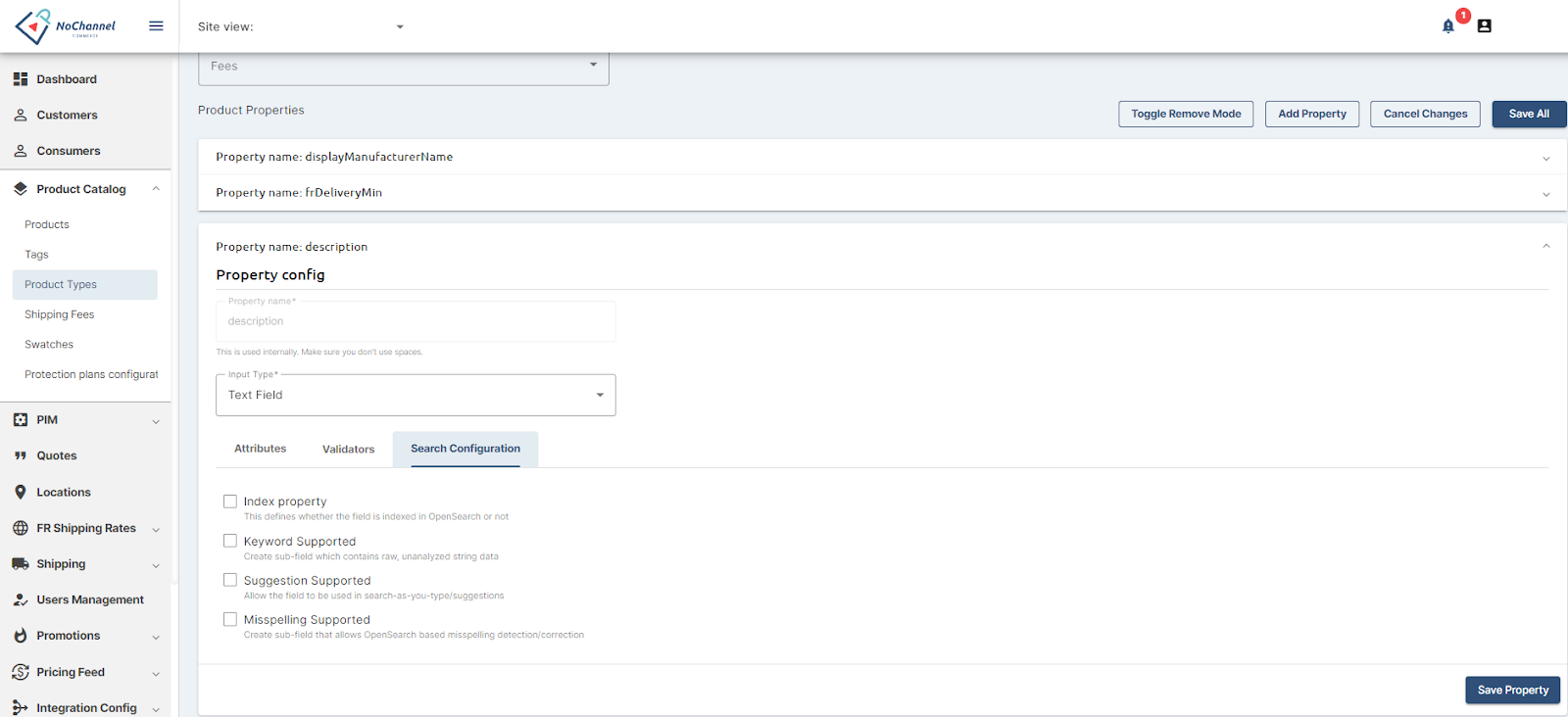
4. Under **Product Properties**, expand a property for which you want to enable Spell Correction.
5. Under the **Attributes **tab of the Property, make sure to select the following fields:
1. **Property Context**: Must be ***Product.***
2. **Type**: Must be ***Textarea***.
6. Go to Search Configurations, and ensure the following options are enabled:
1. **Index Property**: This ensures the field is included in the searchable data. Additionally, ensure that the product description property is at least enabled for misspelling.
2. **Misspelling Supported**: This activates spell correction functionality for the specific attribute.
7. Once enabled, click on **Save Property**.
8. Repeat the above steps on all the properties that contain product content only to enable Spell Correction.
:::
:::::
## Step 2: Reindexing
After enabling the Spell Correction feature for **Product Types** in the Product Catalog and Attributes in the PIM, administrators or users with specific user permissions can ensure the search data is up-to-date and accurate by reindexing the live catalog items. The NoChannel Search API provides two endpoints for this purpose.
```curl
curl --request POST \
--url https://api.upstartcommerce.com/v1/catalog/live/search/reindex \
--header 'Accept: application/json' \
--header 'Authorization: Bearer YOUR_ACCESS_TOKEN' \
--header 'Content-Type: application/json' \
--header 'x-upstart-tenant: YOUR_TENANT_ID'
```
This endpoint allows administrators to reindex the search data for live catalog items. It is essential to ensure that any product types and attribute changes are accurately reflected in the search results. The authorized permission `catalog.search.reindex` is required for this operation.
```curl
curl --request POST \
--url https://api.upstartcommerce.com/v1/catalog/wip/search/reindex \
--header 'Accept: application/json' \
--header 'Authorization: Bearer YOUR_ACCESS_TOKEN' \
--header 'Content-Type: application/json' \
--header 'x-upstart-tenant: YOUR_TENANT_ID'
```
Similarly, this endpoint allows administrators to reindex the search data for work-in-progress (WIP) catalog items. This ensures that any changes or updates made to the WIP products are reflected accurately in the search results. As with the previous endpoint, the `catalog.search.reindex` permission is required.
## Step 3: Through the NoChannel Commerce APIs
### Step 1: Creating a Route with Spell Check (Optional)
You may create a new route only if one does not exist that needs to have spell check enabled. To create a route using the ML-based spell check solution, use the following command, or simply add the `spellCheck `block to your existing route curl:
```curl
curl --location 'https://nochannel-dev-1-api.nochannel-dev.upstart.team/v1/search/routes' \
--header 'X-UpStart-App: YOUR_APP_ID' \
--header 'X-UpStart-Site: YOUR_SITE_ID' \
--header 'X-UpStart-Tenant: YOUR_TENANT_ID' \
--header 'Content-Type: application/json' \
--header 'x-upstart-api-key: YOUR_API_KEY' \
--data '{
"id": "spellcheck_route",
"displayName": "Spell Check Route",
"access": "public",
"indexes": [
{
"id": "catalog_live",
"spellCheck": {
"type": "MLBased",
"highlight": {
"pre_tag": "",
"post_tag": ""
}
}
}
]
}'
```
This command creates a route named "spellcheck\_route" using the ML-based spell check solution.
:::hint{type="warning"}
**Notes**:
- You can switch between OpenSearchBased and MLBased.
- The Index is used in Route must have spell check enabled properties. (`catalog_live.name` is spell checkable by default).
:::
:::hint{type="info"}
**Related**
- [Index Properties](https://apidocs.upstartcommerce.com/docs/search/145594bdb48cc-list-index-properties-by-index-name)
- [Existing Routes](https://apidocs.upstartcommerce.com/docs/search/a53181b425834-list-routes)
- [Update Route by ID](https://apidocs.upstartcommerce.com/docs/search/e57dabc1b30db-update-route-by-id)
:::
### Step 2: Searching with Spell Check
To search on the created route with corrections, use the following command:
```curl
curl --location 'https://nochannel-dev-1-api.nochannel-dev.upstart.team/v1/search/routes/spellcheck_route/search' \
--header 'X-UpStart-App: YOUR_APP_ID' \
--header 'X-UpStart-Site: YOUR_SITE_ID' \
--header 'X-UpStart-Tenant: YOUR_TENANT_ID' \
--header 'Content-Type: application/json' \
--header 'x-upstart-api-key: YOUR_OTHER_API_KEY' \
--data '{
search":{
"query":{
"query_string":{
"query": "matres"
}
}
},
"tracking": "all"
}'
```
This command searches on the "spellcheck\_route" with the query "matres" and returns spell check suggestions with highlighted corrections using the ML-based model.
## Usage Guidelines
- **Business Owners**: Implementing the Spell Check API primarily improves search and quality of results, and enhances user satisfaction, leading to increased conversion rates and customer loyalty.
- **Developers**: Integrate the API seamlessly into your platform to ensure accurate search results, providing a smoother user experience.
:::hint{type="success"}
Go to the [Routes API document](https://apidocs.upstartcommerce.com/docs/search/fa24b39f93ed6-create-route) for more details.
:::